The Settings Screen, Top to Bottom
A guided tour of every setting and what it controls.
The Settings Screen, Top to Bottom
The Settings screen is where Vibe SEO learns about your business and connects to the outside services it needs. It captures the same information as the setup wizard, but you can open it and edit any field at any time. You reach it from the Vibe SEO menu in your WordPress admin sidebar under Settings. This lesson walks the screen in the exact order it appears so you know what every card and button does.
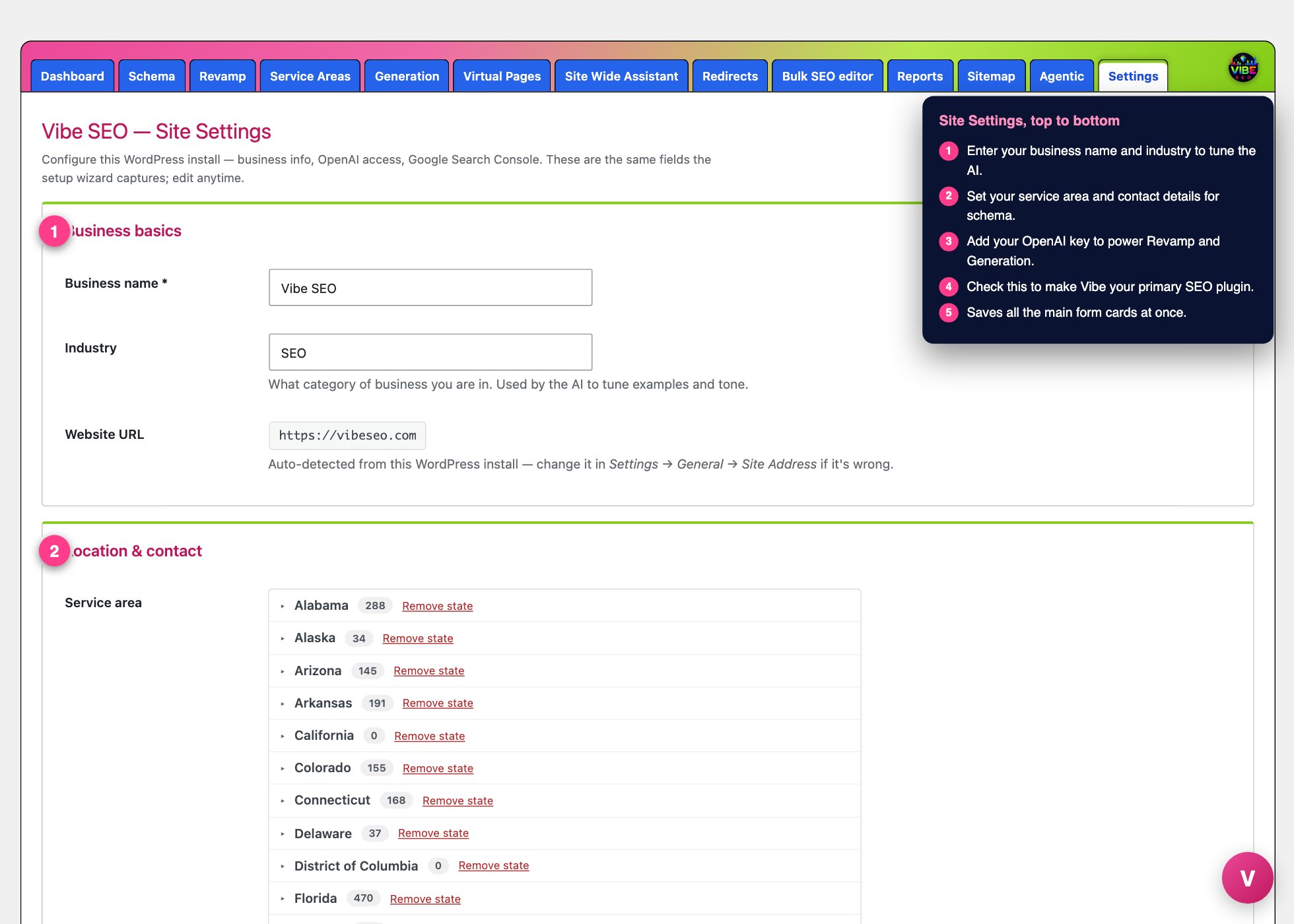 The settings screen, with the numbered steps from this lesson marked.
Access key
If your site is a Vibe SEO subscriber, the first card is your access key. A colored pill tells you the state at a glance: green "Valid and active," red "Not active," or yellow "Not entered." Paste the key that was emailed to you when you subscribed at vibeseo.com, tick the box accepting the Terms of Service and Privacy Policy, and click "Validate and activate." Until a valid key is on file, every other Vibe SEO menu stays hidden. Once active, this card shows the key, when it was last checked, and two buttons: "Re-validate against vibeseo.com" and "Clear key." If you see a warning that the key belongs to a different website, email the owner address shown so your key can be reissued for the new domain.
After the key is active, if you have not finished the wizard yet, the screen stops and points you to the setup wizard to enter your business info first.
The main settings form
Once setup is complete, the rest of the screen appears. Most of it lives in one big form, and the "Save site settings" button at the very bottom saves all of these cards at once.
Business basics. Your business name (required) and industry. Industry is free text like dental, HVAC, or plumbing, and it tunes the AI's examples and tone. Your website URL is shown read-only because it is auto-detected from WordPress. To change it, edit Settings, General, Site Address.
Location and contact. Set your service area either by picking exact cities in the Service Areas tool or by describing it in words in the fallback text box. Then fill in phone, email, street, city, state, and ZIP. This feeds your schema markup and AI prompts.
Services. List each service with a one-line description. Use "Add another service" to add rows and the x button to remove them. These populate Service schema entities, Generation, and Site Wide AI suggestions.
Brand voice. A free-text box describing how the AI should sound. The wizard prefills a sensible default. Refine it here as you see how the writing reads on your real pages. It drives Revamp and Generation.
Keywords, watchlist alert thresholds. Three numbers that tune the ranking-drop alerts on your Dashboard: a warning threshold (orange), a critical threshold (red, must be larger than the warning), and a page-1 cutoff (default 10). Defaults are fine for most sites.
OpenAI. Your OpenAI key powers Revamp and Generation. Everything else works without it. The key is stored on your own site and never sent to vibeseo.com. If a key is saved, the field shows the last four characters, and you leave it blank to keep it or paste a new one to replace it. Choose a default model from gpt-4o-mini (cheapest) up to gpt-4.1 (highest quality).
Vibe AI, powered by Claude. A bring-your-own Anthropic key for the admin-side assistant. It stays dormant until both a key is saved and the data-processing disclosure below it is accepted. Pick a Claude model, with Opus 4.7 as the recommended default. A status pill reads "armed" or "dormant," and a collapsible activity log lists the assistant's recent tool calls.
Search appearance defaults. Set default title and meta description templates per post type using the clickable token buttons, a title separator, a fallback social image, and toggles to disable thin author or date archives.
Webmaster verification. Paste the verification code or full meta tag from Google, Bing, Pinterest, Yandex, or Baidu. Vibe emits the matching tag in your head.
SEO output mode. One checkbox makes Vibe your primary SEO plugin, taking over titles, meta descriptions, canonical, Open Graph, Twitter Card, and robots tags. If a competing SEO plugin is active, deactivate it afterward to avoid duplicate tags.
Connections and saving
Below the form sit two independent cards, Google Search Console and Google Business Profile. Each has its own "Connect with Google" button, one-click sign-in with no Google Cloud setup on your end, a property or location selector, and a disconnect button.
Common mistakes
The big trap: the Search appearance, Webmaster verification, Search Console, and Business Profile cards each have their own Save or Connect button and save on their own. The bottom "Save site settings" button only covers the main form fields above them. A good result is every card showing a green status pill, your key ending correctly, and both Google connections reading "Connected."