Schema & Structured Data
Tell Google and AI engines exactly who you are.
What Schema does and why it matters
Search engines read your pages as text, but they trust structured data far more than words on a page. Schema (also called structured data or JSON-LD) is a hidden block of code in the head of every page that spells out, in a format Google reads directly, exactly who you are: your business name, type, phone, address, service area, hours, star rating, reviews, and frequently asked questions.
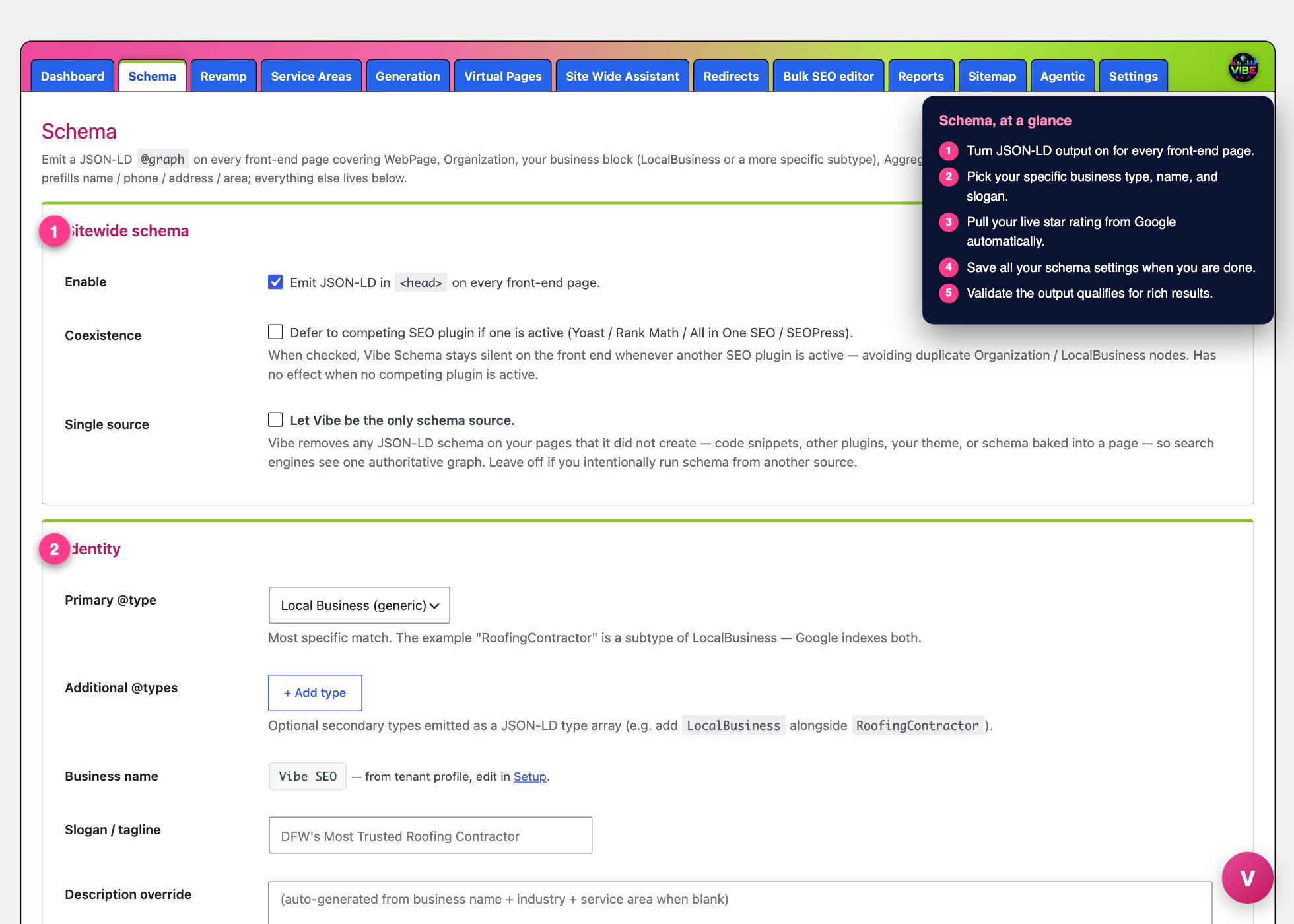 The schema screen, with the numbered steps from this lesson marked.
The Schema tool writes that block for you automatically. It emits one JSON-LD graph on every front-end page, covering WebPage, your business node (LocalBusiness or a more specific type), Organization, WebSite, AggregateRating, individual Reviews, and a FAQPage. This is what powers rich results in Google: review stars under your listing, FAQ accordions in the search results, and the local business panel. Without it, you are relying on Google to guess. With it, you are telling Google directly.
Where it lives
Open the Vibe SEO menu in your WordPress admin and click the Schema tab. Most of the work is already done for you: your business name, phone, address, and service area are pulled straight from your Setup profile, so the form starts pre-filled. Your job is to fill the gaps and confirm the details.
Setting it up, step by step
- Enable it. The Enable checkbox at the top turns the JSON-LD output on for every page. Leave it on.
- Pick your primary @type. Choose the most specific match for your business from the dropdown, for example Roofing Contractor, Plumber, or Electrician. Google indexes the specific type, so "Roofing Contractor" tells it more than the generic "Local Business." You can also add secondary types if your business genuinely fits more than one.
- Fill in Identity. Add a slogan, a logo URL, and a description if you want to override the auto-generated one. If you leave the description blank, the plugin writes a sensible one from your name, industry, and service area. You can also set brand, founder, and founding date.
- Confirm Location and contact. Phone, email, and address come from your profile. Add your geo coordinates (latitude and longitude) to pin your office, and paste your Google Maps share link into the hasMap field. Set the geo pin even if you travel to customers. The Area served box handles the wider region, and a comma-separated list of cities works well here.
- Add business details. Set your price range, the payment types you accept, and your opening hours. Hours are built row by row: check the days, set open and close times, and add more rows for different schedules.
- List your social profiles. Pick a platform per row and paste the URL. These become the sameAs links Google uses to connect your site to your Facebook, Instagram, Google Business Profile, and directory listings.
- Point to your FAQ page. Choose the WordPress page that holds your FAQ content. The plugin reads the question and answer pairs automatically, whether they are built with a Yoast FAQ block, HTML details blocks, or plain H2/H3 headings ending in a question mark, and emits them as a FAQPage.
- Set your rating and reviews. The best option here is Live from Google. Paste your Google Place ID and a Places API key, and Vibe pulls your live star rating and review count straight from Google every 12 hours, so it never goes stale. If you would rather not connect the API, type a rating and review count manually in the fallback fields, and add individual reviews below.
- Save Schema, then use the Live preview at the bottom to see the exact JSON-LD that will render.
Keeping Vibe the single source of truth
Two sets of business schema on one site confuse Google about which one to believe. The tool watches for this in two ways. If a competing SEO plugin like Yoast or Rank Math is active, you will see a warning, and you can tick "Defer to competing SEO plugin" so Vibe stays silent. If schema is coming from a code snippet, your theme, or content baked into a page, Vibe scans for it and reports how many foreign blocks it found. Turn on "Let Vibe be the only schema source" and Vibe strips every JSON-LD block it did not create, leaving one clean, authoritative graph.
The smartest way to use it
Fill everything once, save, then validate. The tool gives you two buttons: Test in Google (the Rich Results Test, which checks whether you qualify for review stars and FAQ snippets) and Validate at schema.org (which confirms the code parses cleanly). Paste in any URL on your site, not just the homepage, and confirm both come back clean.
Connect the live Google rating rather than typing numbers, so your star count updates itself as new reviews come in. Use the Knows about box to list the exact topics and city-plus-service phrases you want to rank for. This tool pairs naturally with the rest of Vibe: your Setup profile feeds it, your city and service pages inherit page-specific schema automatically (blog posts become BlogPosting, service pages become Service, how-to posts become HowTo), and turning on single-source mode keeps everything you publish speaking with one voice.