Page Generation
Spin up optimized, on-brand pages from a prompt.
What Page Generation is for
Page Generation builds real, individually editable location pages in bulk. You design one template page for a service, point the tool at a list of places, and it clones that template into a separate WordPress page for every place and service you asked for. Each clone gets its own URL, its own title and meta description, and its own body text with the place name filled in.
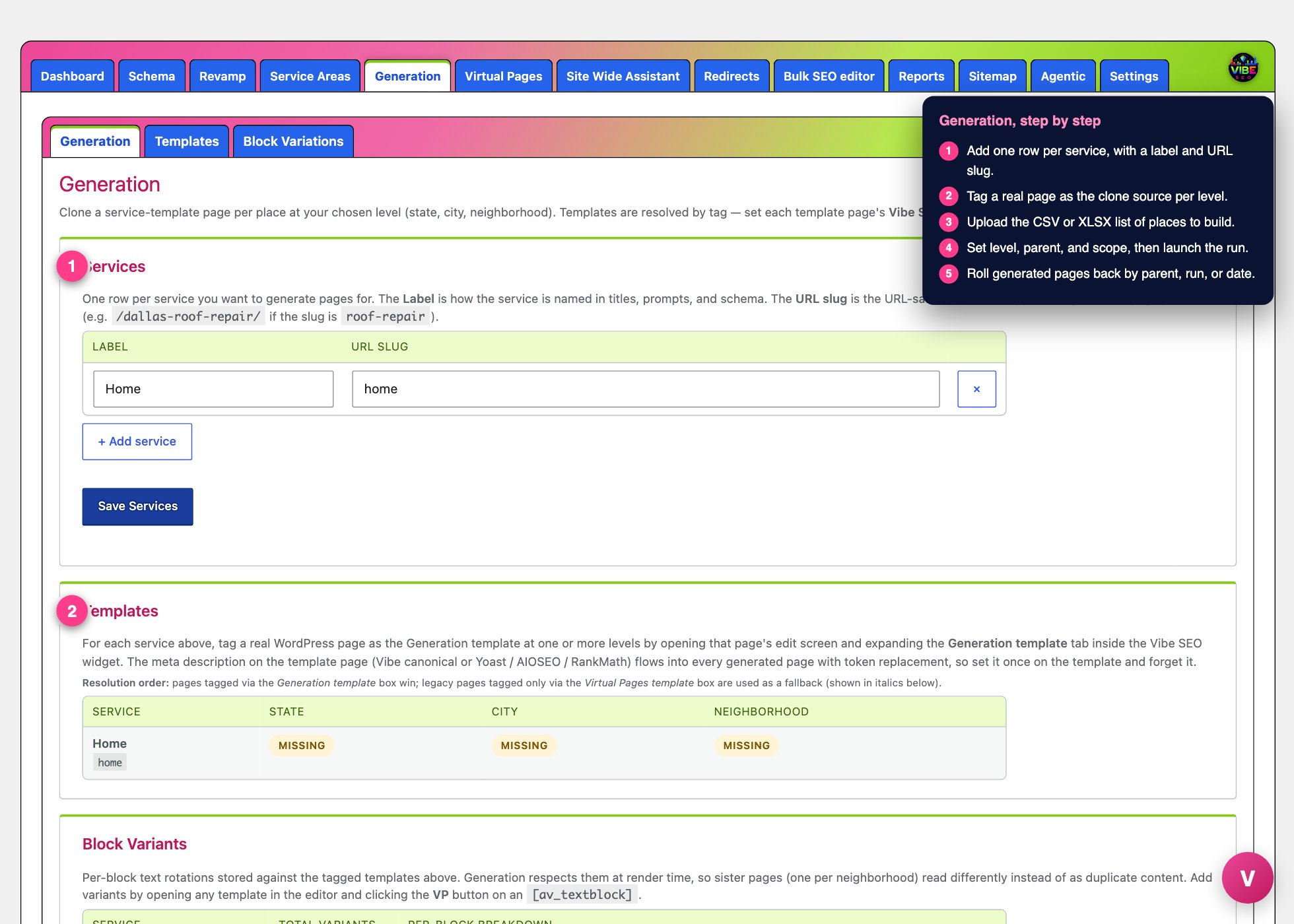 The generation screen, with the numbered steps from this lesson marked.
This is the tool to reach for when you want landing pages you can hand tweak later, like your most important city and service combinations. If you instead want broad long tail coverage without adding rows to your database, use Virtual Pages. Generation creates genuine posts that live in the database, so use it for the targets that truly matter and lean on Virtual Pages for the wide net.
What it actually does
For each place in your dataset, Generation:
- Clones your tagged template page (its content and all its layout settings) into a new draft page.
- Sets the URL to
/{parent-slug}/{place-slug}-{service-slug}/, for example/dfw-roofing/dallas-roof-repair/. - Replaces tokens in the body and meta with the real values:
{CITY},{STATE},{NEIGHBORHOOD},{SERVICE}, and{COMPANY}(your business name). - Adds nearby neighborhood links on neighborhood level runs, worked out from the GPS coordinates in your dataset, nearest first.
- Rewrites internal links so that a link pointing at the template now points at the matching sibling page for that place.
- Writes an SEO title and meta description for each page, using the template's own meta description first, then your fallback, then a built in default.
Generated pages are created as drafts, so you review them before they go live. Every link in the generated content is set to open in a new tab.
Setting it up, step by step
The tool lives at Vibe SEO, Generation. Work down the page in order.
-
Services. Add one row per service. The Label is how the service reads in titles and text (for example Roof Repair). The URL slug is the tidy version that appears in the address (for example
roof-repair). The slug fills in automatically as you type the label. -
Templates. For each service, tag a real WordPress page as the template. Open that page's editor and find the Vibe SEO, Generation Template box in the sidebar. Pick a Level (State, City, or Neighborhood) and a Service, then click Convert this page to a Generation template. You can also click Clone this page as a Generation template to duplicate an existing page as a starting draft. The Templates table on the tool screen shows a grid of every service by level so you can see at a glance which templates are set and which are still missing. Set the template's meta description once here and it flows into every generated page with tokens replaced.
-
Dataset. Generation loops over a CSV or XLSX list of places. Required columns are
stateandcity. Neighborhood runs also needname(orneighborhood),lat, andlon. The fastest way to build this is the Service Areas tool, which pulls cities and neighborhoods from OpenStreetMap with coordinates and exports a file in this exact shape, or saves a named batch you can load here in one click. -
Start generation. Choose the Level, pick the Parent page that all the new pages sit under, and set the Scope filter. For neighborhood runs the scope is the city to loop inside; for city runs it is an optional state; for state runs leave it blank. Seed place is optional and generates one place first so you can spot check the output. Click Start Generation.
While it runs
Generation queues the work and processes it in the background through WordPress cron, with a watchdog so a slow host does not stall or double process. The Queue card shows status, level, scope, how many pages are done, and how many remain. You can Pause, Resume, Process Now, or Stop at any time.
The Batch management card lets you roll pages back cleanly: by parent and place name, by the run ID printed in the log, by a date range, or all generated pages at once.
The smartest way to use it
- Spot check with a seed place first. Generate one place, open the draft, confirm the tokens, links, and meta look right, then let the full batch run.
- Keep each run under about 200 pages. Large runs strain cron and the page builder. Split big lists by region across different parent pages, one region per parent, which also keeps your site organized.
- Turn on Bake Block Variations in Advanced settings. Each clone then gets a different, deterministically chosen wording per block, so sister pages read uniquely instead of as duplicate content. Define those rotations in the Block Variations tool.
- Use the service area polygon on neighborhood runs to fence generation to where you actually do business, since OpenStreetMap data often reaches past your real coverage.
- Add your OpenAI key at Setup if you want AI block rewrites during generation. Cloning and token replacement work without it, but AI rewrites are skipped when no key is on file.
- Pair the tools deliberately. Service Areas feeds the dataset, Block Variations keeps the copy fresh, and Virtual Pages carries the broad long tail while Generation handles your priority pages.