Service Areas
Define every city and neighborhood you serve.
What Service Areas is for
If you serve a lot of towns, you eventually want a page for each place you cover. The hard part is not writing those pages, it is building an accurate list of every city and neighborhood you serve, with the correct spelling and map coordinates for each one. Doing that by hand is slow and error prone.
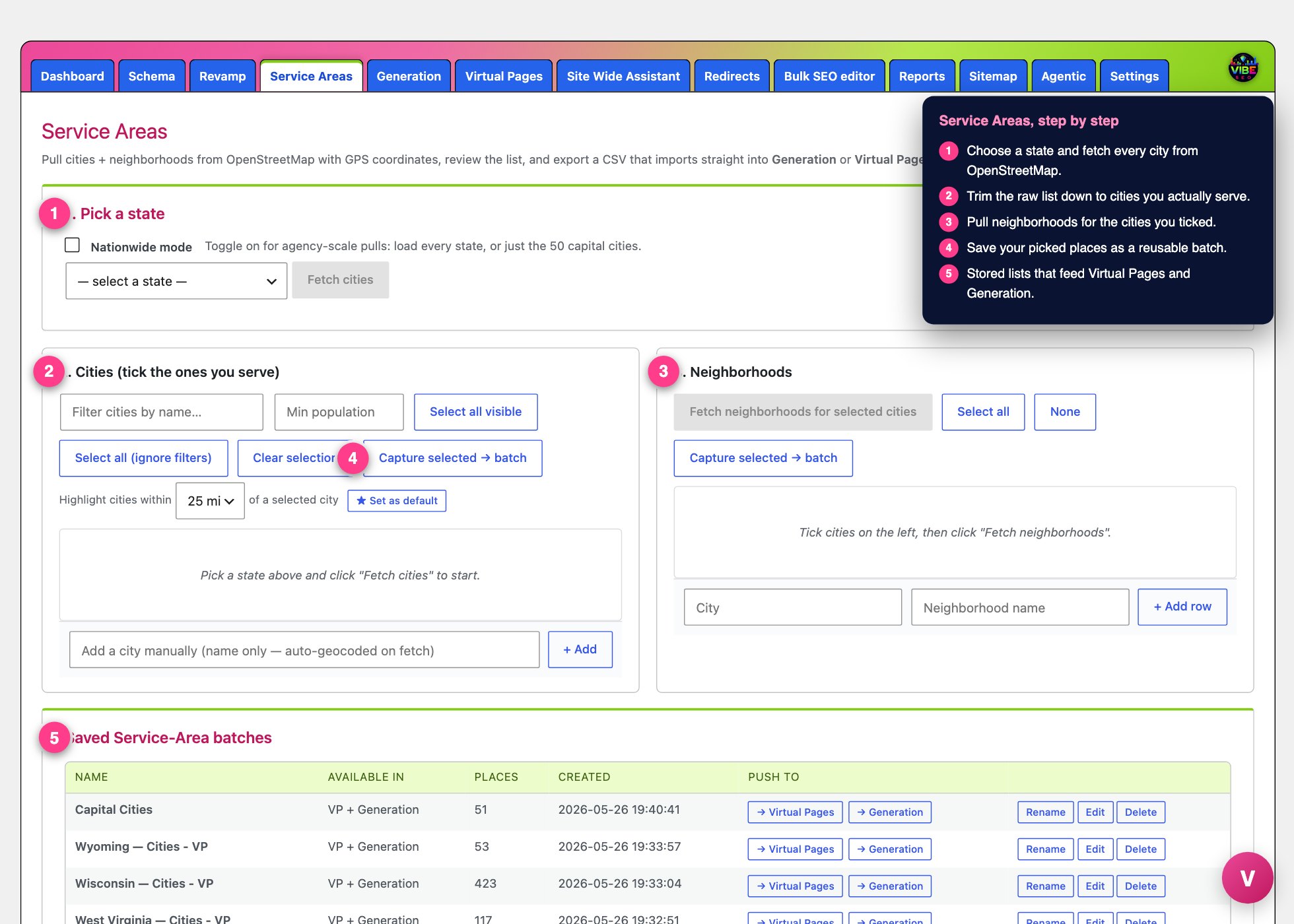 The service areas screen, with the numbered steps from this lesson marked.
Service Areas solves that. It pulls cities and neighborhoods straight from OpenStreetMap, complete with population figures and GPS coordinates, lets you review and trim the list to only the places you actually serve, and then hands that clean list to the page building tools. It uses free public map data, so there are no API keys to set up and no per query cost.
Where it lives
Open the Vibe SEO menu and click Service Areas. The screen is laid out as a top to bottom workflow: pick a state, choose your cities, pull their neighborhoods, then export or save. You need to have finished the setup wizard before the tool becomes available.
Step 1: Pick a state
Choose a state from the dropdown and click Fetch cities. Vibe queries OpenStreetMap and returns every city, town, and village in that state, each with its population and coordinates. Results are cached for seven days, so a second pull of the same state is instant. The list is sorted by population, largest first, and the state capital is always pinned to the top.
There is also a Nationwide mode toggle for agency scale work. It gives you two options: Fetch all 50 states, which loads a checklist so you can tick the states you serve and pull all their cities at once, or Fetch all state capitals, which drops the 50 capital cities straight into the city list.
Step 2: Cities, tick the ones you serve
This is where you narrow a big raw list down to your real service area.
- Filter by name to jump to a specific town.
- Set a minimum population to hide small places. The state capital is always shown regardless of this filter.
- Use Select all visible, Select all (ignore filters), or Clear selection to move quickly.
- The nearby highlight turns any city within a chosen radius of a selected city green and tags it with the distance. Pick your radius (5, 10, 15, 25, or 50 miles, or off), and you can save your preferred radius as the default. This is the fast way to find the next door towns that belong in the same service area without scrolling a 300 city list.
- If a place is missing, type its name into Add a city manually.
Step 3: Neighborhoods
Tick the cities you want, then click Fetch neighborhoods for selected cities. Vibe pulls each city's neighborhoods one at a time, pausing briefly between cities to stay friendly with the map service. It casts a wide net across named places, official neighborhood boundaries, and a radius around each city, then cleans the results: it drops entries that are clearly single facilities like senior living communities and condo complexes, and it strips business suffixes such as Inc or LLC so a subdivision reads as a place, not a company.
Neighborhoods appear in a collapsible list grouped by city. Tick a whole city or open it to pick individual neighborhoods, delete any you do not want, or add your own with Add row.
Getting the list out
Once you have rows selected, the export bar appears with a running count. You have three ways to use the result:
- Download CSV gives you a file with the columns state, city, neighborhood, lat, and lng. Each selected city is one row, and its neighborhoods are listed underneath it.
- Push to Virtual Pages sends the rows straight into Virtual Pages, skipping duplicates and recomputing nearby neighbor distances automatically.
- Save as a reusable batch stores the rows under a name you choose, with a target of VP plus Generation, Virtual Pages only, or Generation only.
Saved batches
Saved batches are the smart way to work, because one batch can feed both page builders without you re pulling or re uploading anything. The Saved Service-Area batches table shows each batch's name, where it is available, how many places it holds, and when it was created. From there you can push a batch to Virtual Pages (dynamic location URLs) or to Generation (a real WordPress page per place and service). You can also Rename, Edit, or Delete. The Edit view lets you filter and remove rows, move rows into another batch, or strip rows out of every other batch, and there is a control to backfill missing population figures. Append adds new rows to an existing batch and dedupes by state, city, and neighborhood, so re running a pull and appending again only adds what is new.
Why it pays off
The cities you save here do more than feed page generation. They set your service area summary, which flows into your schema markup and AI prompts, and they power the By area view in the Keywords tool, which filters search queries to the places you actually serve. Build the list once, keep it clean, and every location aware feature in Vibe gets more accurate. Once those places feed the page builders, Block Variations rotates the wording on each generated location page so sister pages read uniquely instead of as thin duplicates.
A word of caution on Generation: it creates a real post for every place times every service, so push only your priority targets and keep the page count sensible.