City Page Editor
Hand-tune the content on any individual city page.
What Edit City solves
Vibe builds thousands of location pages from one shared template. Block Variations keeps the wording from being word-for-word identical, but the whole set still runs off the same rotating defaults, and every one of those pages ships as noindex until it has been reviewed. That is exactly what you want for the long tail. It is not what you want for the handful of cities that actually matter to your business.
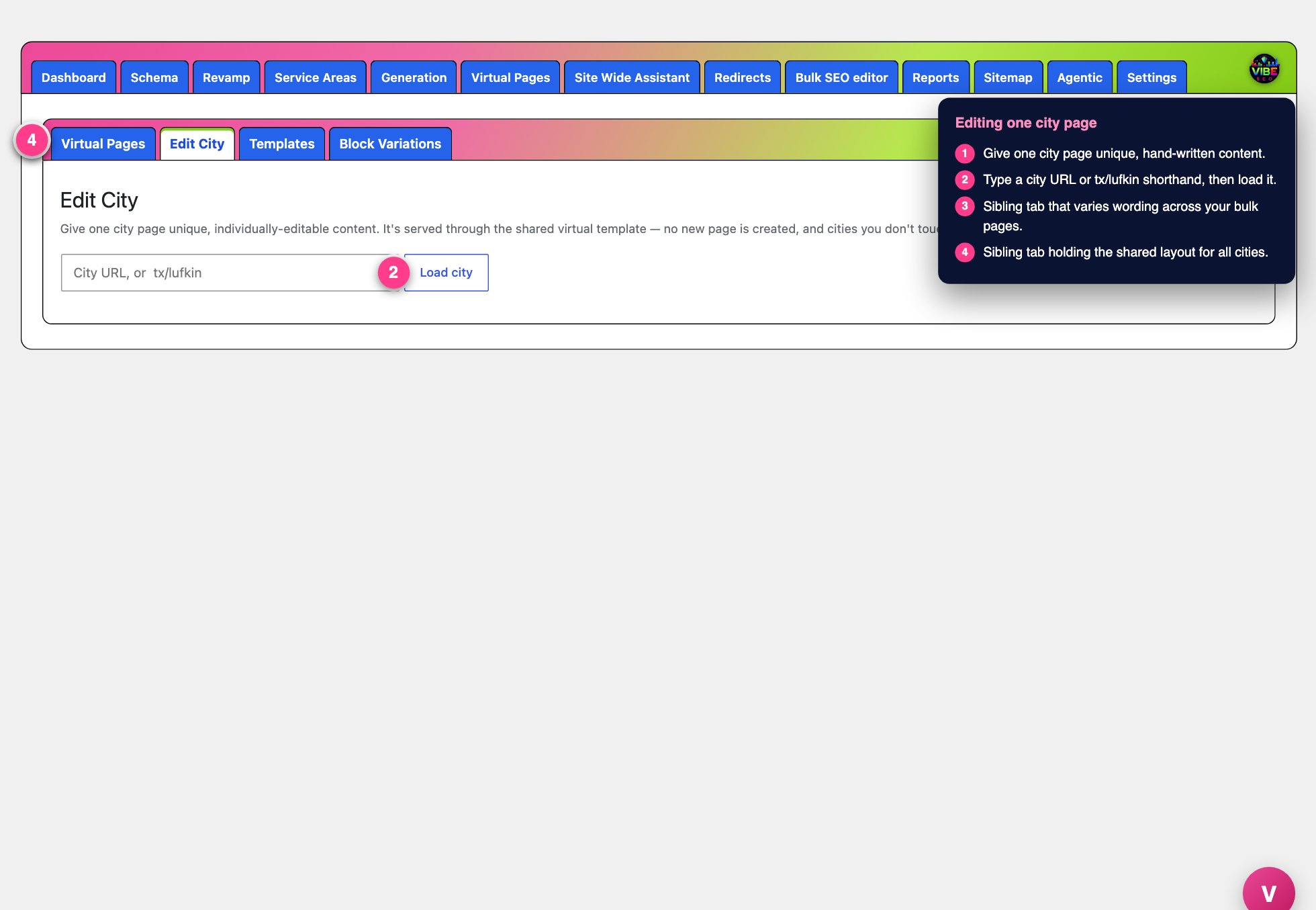 The city editor screen, with the numbered steps from this lesson marked.
Edit City is how you promote those priority cities. It lets you give one individual city page genuinely unique, hand-written content and flag it for indexing, without building a real WordPress page for it. The page is still served through the shared virtual template. You are only overriding the parts you choose to write, for the one city you loaded. Every city you do not touch renders exactly as it did before.
What it actually does
The tool stores your custom text as a content override on that single city's row and records whether the city is allowed into the index. At render time Vibe merges your override over the rotating template defaults. Any field you leave blank keeps the rotating default, so a partial edit is fine. This means you are never starting from a blank page and you are never forced to rewrite everything.
Two of your inputs, city and state, are filled in for you automatically. Anywhere you type {CITY} or {STATE} in your copy, Vibe swaps in the real city and state name when the page renders. That lets you write natural, reusable phrasing that still reads correctly on the live page.
How to use it, step by step
- In the plugin, open Virtual Pages and go to the Edit City tab.
- In the Load city box, paste the full city URL (for example the
.../tx/seo-services-in-lufkin/address) or type the shorthandtx/lufkin(state abbreviation, then city slug). Click Load city. If the tool cannot find a matching virtual city, it tells you so. That usually means the page is already a real page, or the slug is slightly off. - Once the city loads, you see its name, state, and population, plus a view page link that opens the live page in a new tab.
- Fill in only the fields you want to make unique. Each is optional, and blank means "use the rotating template default":
- H1 headline is the main headline at the top of the page.
- Lede is the short opening line under the headline.
- Intro is the local introduction paragraph. HTML is allowed here.
- Custom body is an optional unique section that renders where the template places its city-body slot. Other cities do not get this section unless you write one for them, so it is the best place for content that is truly specific to this city.
- When the content is genuinely unique, tick Index this page to allow search engines to index it. Leave it off while the page still reads like the generic default.
- Click Save city content. Vibe saves your override, purges the page cache so the live version updates, and reloads the screen with the city still open and a confirmation notice.
Why it helps
Search engines reward pages that carry real, distinct, place-specific value and quietly hold back pages that read like filled-in templates. Edit City lets you hand-pick your most important markets, invest unique content in them, and then open just those pages to indexing. The rest of your virtual pages stay lean and out of the index until they earn their way in. You get the reach of a large location footprint without the duplicate-content risk of pushing thin pages live, and you do it without the overhead of building and maintaining a separate WordPress page per city.
The indexing switch is deliberate. By default every virtual city page carries a noindex tag. Flagging a city as indexed removes that tag and adds the page to your XML sitemap, so search engines are pointed straight at it. Because that decision is per city, you are always in control of exactly which pages compete.
The efficient way to work it
- Promote selectively. Spend real writing effort on the cities that drive revenue and leave the long tail on Block Variations defaults.
- Rewrite the visible, high-value fields first: the H1, lede, and intro. Add a Custom body section when you have something specific to say about that city, such as local landmarks, service history, or named neighborhoods.
- Use
{CITY}and{STATE}so your phrasing reads naturally and stays safe to reuse across your priority pages. - Preview before you index. Click view page, read the live result, and only then tick Index this page. If the site is still in a pre-launch lockdown, that site-wide setting can still hold the page back until you launch.
- Pair it with its siblings. Block Variations keeps the bulk of your pages varied, Virtual Pages is the engine that serves them, and the sitemap picks up every city you flag as indexed. Edit City is the step that turns a generic entry in that set into a page built to rank.