Bulk SEO Editor
Fix titles, descriptions, and more across many pages at once.
What the Bulk SEO Editor is
The Bulk SEO Editor is a single screen where you edit the SEO title and meta description for many pages and posts at once, instead of opening each one in the WordPress editor. These two fields are what shows up in Google results as the blue clickable headline and the gray summary line beneath it. On most sites they are the highest-leverage SEO fields you control, and they are also the ones most likely to be missing, duplicated, or auto-filled into something generic. This tool puts all of them in one list so you can see them side by side and fix them in a batch.
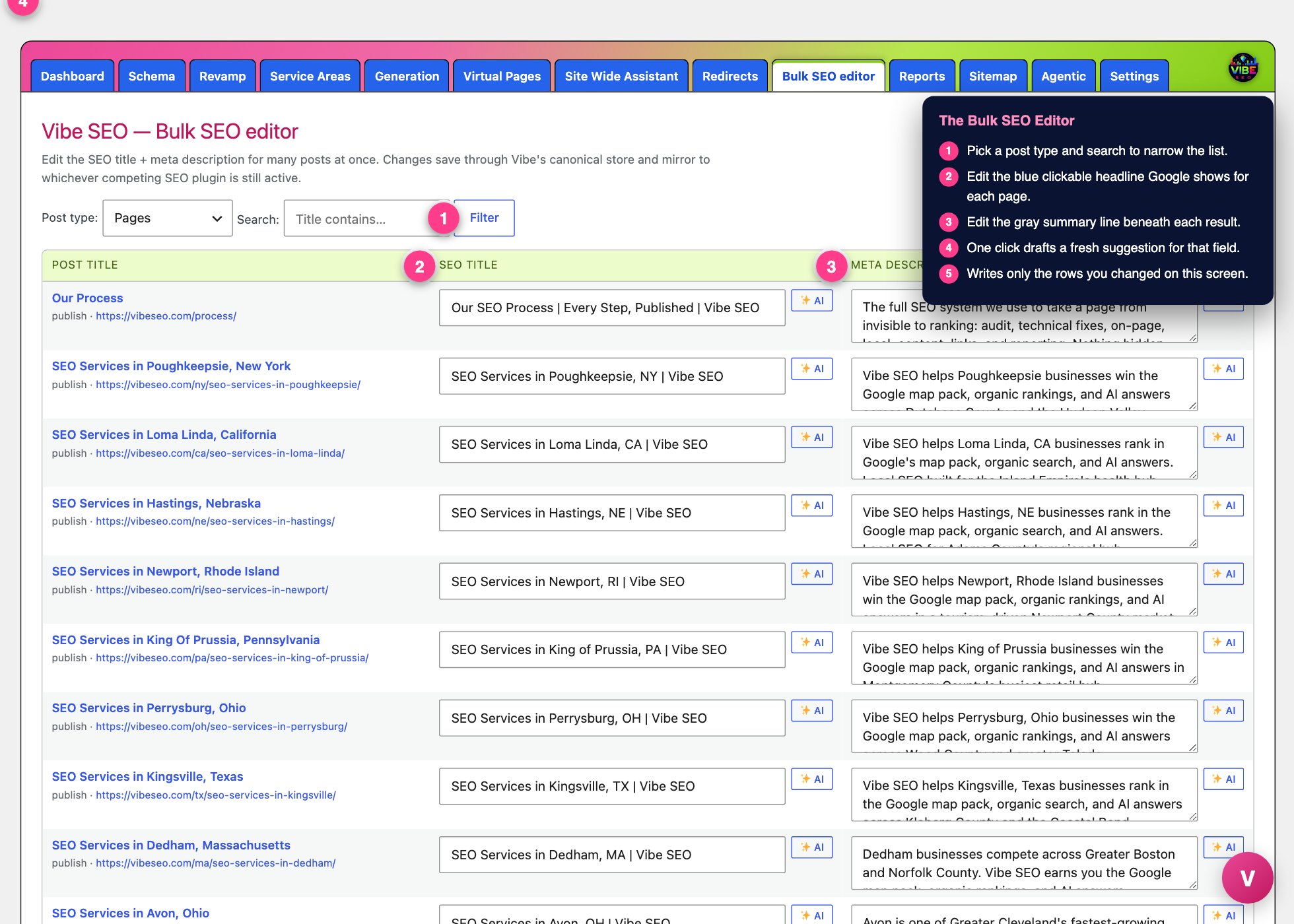 The bulk seo screen, with the numbered steps from this lesson marked.
What it actually does
- Lists your content in a table, 50 items per screen, ordered by most recently edited first. It shows both published and draft items.
- Uses three columns per row: the post title (a link that opens the WordPress editor in a new tab, with the status and full URL shown underneath), the current SEO title in an editable box, and the current meta description in an editable box.
- Reads the real current values from Vibe's canonical store. When a value is still empty in Vibe, it falls back to whatever Yoast, Rank Math, or All in One SEO had for that page, so you are never editing a blank when real data exists elsewhere.
- Resolves old template tokens. If a page inherited something like %%title%% %%sep%% %%sitename%% from a previous plugin, the box shows the readable result instead of the raw code. The moment you edit and save, it becomes plain text.
- Saves the whole visible page in one click, and only writes the rows you actually changed.
- Mirrors every change back to whichever competing SEO plugin is still active, so your live pages stay consistent while you transition to Vibe.
- Offers a one-click AI rewrite button on each field.
Where it lives and how to use it
- In the WordPress admin sidebar, open Vibe SEO and choose the Bulk SEO editor tab. You need administrator access.
- Use the filter bar at the top. Pick a Post type from the dropdown, which defaults to Pages and lists every public content type on your site. Type into the Search box to narrow the list to titles that contain a word. Click Filter.
- Edit directly in the table. Type a new SEO title in the middle column and a new meta description in the right column. When a field is empty, its gray placeholder shows the page title as a hint.
- When you finish the items on screen, click Save all changes on this page. You will see a confirmation such as "6 posts saved." Rows you did not touch are skipped.
- If you have more than 50 items, use the page numbers at the bottom to move through the list. Save each page before you move on, because clicking a page number reloads the screen.
The AI rewrite button
Next to each field is a small AI button. Click it and Vibe writes a fresh suggestion for that one field, then drops it into the box. It reads the page title, the URL, and the opening of the body text, then follows real length targets: roughly 50 to 60 characters for a title, and 140 to 155 for a meta description, with your primary keyword worked in near the front and a soft call to action at the end of a description.
That button is only active when you have an Anthropic (Claude) or OpenAI API key saved in Vibe Settings. Vibe uses Claude when it is configured and falls back to OpenAI. If neither key is set, the button is grayed out with a tooltip telling you to add one.
One thing to remember: the AI suggestion fills the box but does not save on its own. Read it, adjust the wording, then click Save all changes on this page. Nothing is written until you save.
Why this helps
Your title and description decide two things: whether Google shows your page for the right search, and whether a person clicks it instead of the nine other results. Generic or duplicate versions waste both. Fixing them one page at a time is slow enough that most site owners never finish. The Bulk SEO Editor turns that job into an afternoon of scanning, editing, and saving in place.
Because every save writes through Vibe's canonical store and also mirrors to your old plugin, you can do this cleanup while you are still switching over. The live site keeps rendering correct tags the whole time.
The smartest way to work
- Sort your effort by value. Start with the Pages post type, then your highest-traffic posts, since those clicks matter most.
- Scan for problems first. With everything in one list, empty boxes and repeated titles are easy to spot. Fix those before polishing the ones that are already fine.
- Use AI as a first draft, not the final answer. Click the button to get a solid starting point, then trim it so it sounds like you and leads with the real benefit to the reader.
- Save each screen before you paginate or re-filter, or your edits reload away.
- Pair it with the rest of Vibe. Use the site scanner to find pages with weak or missing metadata, bring those into the Bulk SEO editor to fix in batch, then let the sitemap and indexing tools push the improved pages back to Google.