SEO Reports
See exactly what moved, per keyword and per page.
What SEO Reports does
SEO Reports turns the work happening on your site into a scheduled email digest that lands in your inbox, your team's, or your client's on a set rhythm. You decide once what goes in the report and how often it sends, and the plugin builds and sends a clean HTML email automatically.
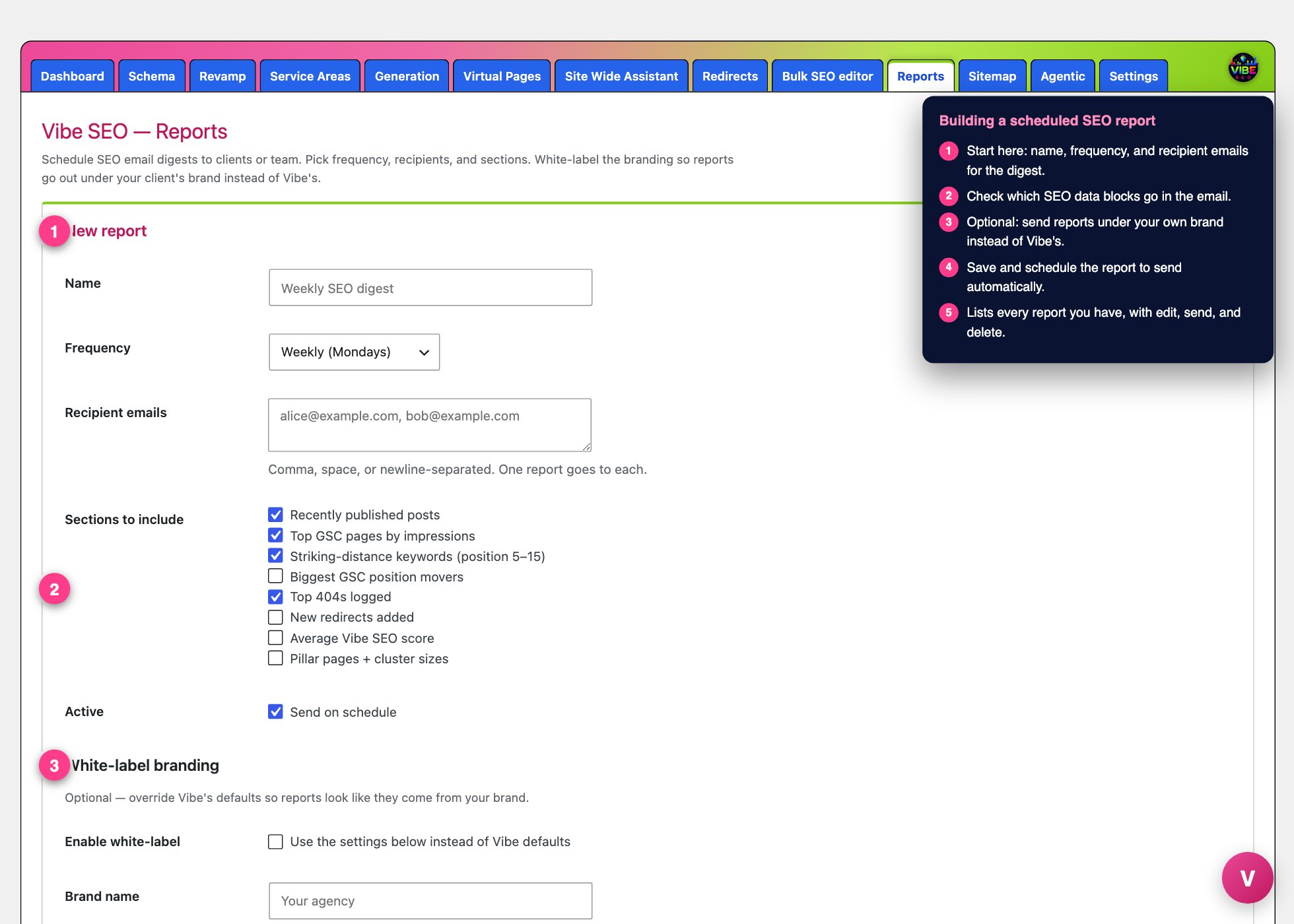 The reports screen, with the numbered steps from this lesson marked.
The problem it solves is simple. SEO progress is easy to lose track of. Posts go live, rankings drift, and broken URLs pile up until someone asks what has actually been done lately. A recurring report answers that for you, on time, without anyone remembering to pull it together.
Where it lives
In the WordPress admin sidebar, open Vibe SEO, then click Reports. The screen has two parts. At the top is a form to create or edit a report. Below it is a table of every report you have scheduled, showing its frequency, how many recipients it has, how many sections it includes, when it runs next, and when it last sent.
Building a report
Fill in the form top to bottom.
- Name. A label for the report, like "Weekly SEO digest." This also becomes the headline at the top of the email.
- Frequency. Choose Daily, Weekly (Mondays), Every other Monday, or Monthly (1st of month). This sets both how often it sends and the time window the email covers: daily looks back 1 day, weekly 7 days, biweekly 14 days, and monthly 30 days.
- Recipient emails. Type one or more addresses separated by commas, spaces, or new lines. Each recipient gets their own copy.
- Sections to include. Check the blocks you want in the email (covered below). You must pick at least one.
- Active. Leave "Send on schedule" checked so the report goes out automatically. Uncheck it to pause a report without deleting it.
A report will not save unless it has a name, at least one valid recipient, and at least one section. If any of those is missing you get an error and nothing is stored.
The sections you can include
- Recently published posts. Up to 10 posts and pages published in the window, each linked, with its publish date.
- Top GSC pages by impressions. Your 10 highest-impression pages from Google Search Console, with impressions, clicks, and average position. Requires Search Console to be connected.
- Striking-distance keywords (position 5 to 15). The searches where you already rank on page one but not near the top, sorted by impressions. These are the cheapest wins on the site, because small on-page fixes often push them into the top three. Requires Search Console.
- Top 404s logged. Your 10 most-hit broken URLs in the window, pulled from the Redirects tool's 404 log, so you can fix or redirect what real visitors are actually hitting.
- New redirects added. Redirects created during the window, so recipients can see cleanup work as it happens.
- Average Vibe SEO score. In the email this shows as coverage: how many of your published posts and pages have a Vibe SEO title set, as a count and a percentage.
- Pillar pages + cluster sizes. Each pillar page you have tagged, with how many supporting articles point to it.
- Biggest GSC position movers. This section is a placeholder for now. Position-history tracking is a later phase, so it will show a "coming soon" note rather than data. Skip it until it ships.
When you create a brand-new report, four sections are pre-checked as a sensible starting point: recently published posts, top GSC pages, striking-distance keywords, and top 404s.
White-label branding
Below the sections is an optional white-label block. This exists so a report can go out looking like it came from your brand or your agency, not from Vibe. Check "Enable white-label," then set a brand name, a logo URL, a From name, a From email, a primary color (the accent color used across the email, which defaults to Vibe pink), and footer text. When enabled, these replace the site defaults in the email subject line, sender, header, and colors. In the reports table, any white-labeled report is flagged with the brand name so you can tell them apart at a glance.
Sending and scheduling
Once saved, a report runs on its own. A background job checks every hour and sends any report whose scheduled time has passed, then sets the next run date. You never have to trigger it manually.
You can also force a send. In the reports table, each row has Edit, Send now, and Delete. "Send now" fires the email immediately after a confirmation prompt, which is the fastest way to preview exactly what recipients will get. If a send fails, the plugin tells you to check the debug log.
Getting the most out of it
- Preview before you trust the schedule. After building a report, add your own address, hit Send now, and read the real email. That is the only way to confirm your section mix and branding look right.
- Match frequency to the audience. A weekly digest suits an internal team watching striking-distance keywords. A monthly report reads better for a client who wants a tidy summary of progress.
- Connect Search Console first. The Top GSC pages and striking-distance sections are the highest-value blocks, and both go blank without a Search Console connection. Set that up before you rely on them.
- Pair it with the tools it reports on. SEO Reports is a mirror, not an engine. The 404 and redirect sections need the Redirects tool in use, and the pillar section depends on you tagging pillar pages. Keep those tools active and the report writes itself.