Page Templates
Reusable, tokenized layouts you can generate against.
What Page Templates does
Page Templates is the control tower for the pages that feed Vibe SEO's two location-page engines: Virtual Pages and Generation. Both of those engines work by taking one page you design once, then reproducing it across every place you serve (states, cities, and neighborhoods) for each service you offer. The page they copy from is called a template.
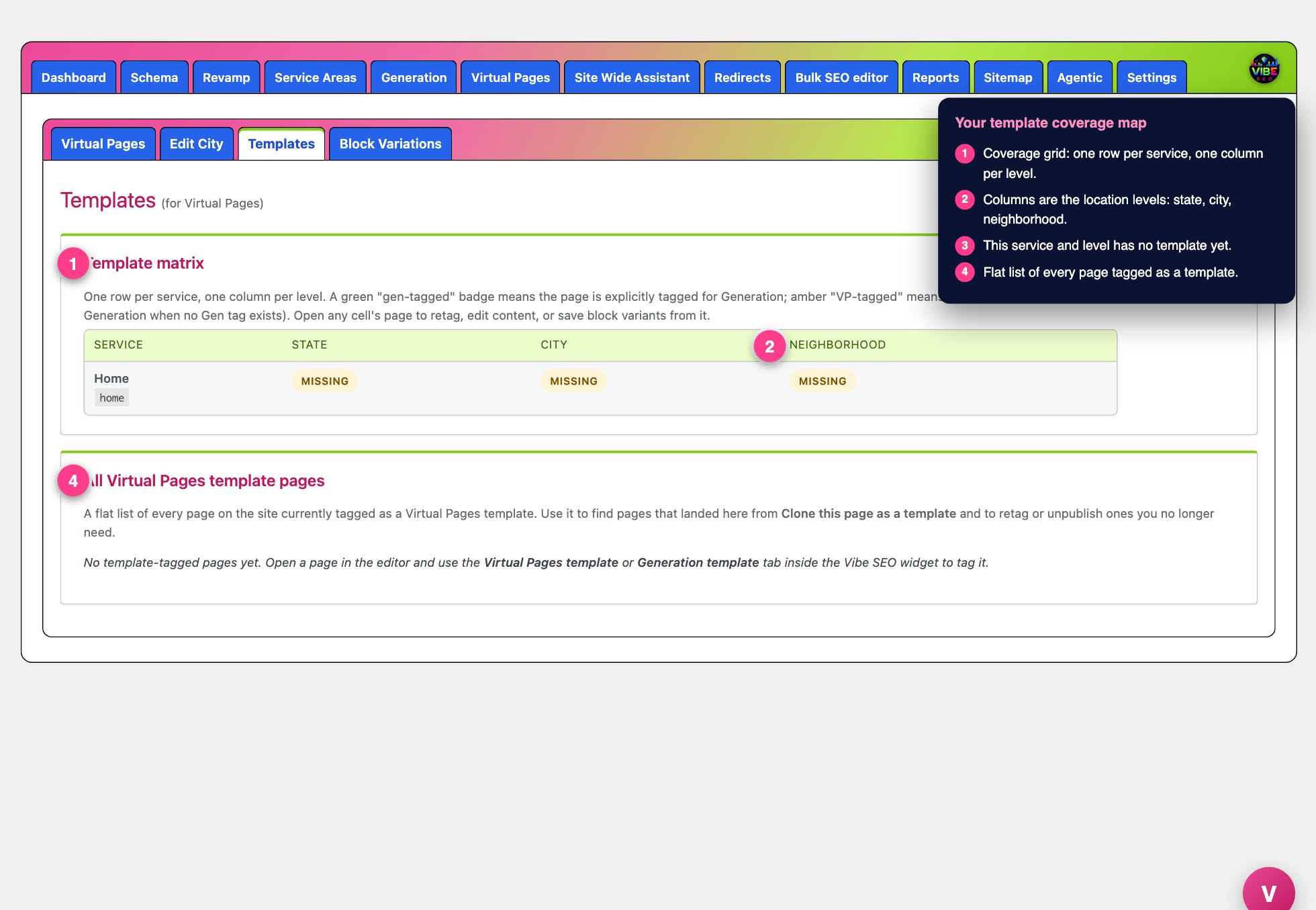 The templates screen, with the numbered steps from this lesson marked.
The Templates screen does not build those location pages and it does not create templates by itself. What it does is show you, in one place, every page on your site that is currently tagged as a template, laid out so you can see at a glance which service and level combinations are covered and which are still empty. Think of it as the coverage map for your location pages.
Where it lives
Templates appears as a sub-tab in two spots, because there are two engines and each keeps its own templates cleanly separate:
- Under the Virtual Pages parent, it shows your Virtual Pages templates.
- Under the Generation parent, it shows your Generation templates.
The tab you are looking at is labeled at the top, for example "Templates (for Virtual Pages)" or "Templates (for Generation)," so you always know which family you are viewing.
The template matrix
The first card is a grid. Each row is one of your services, and each column is a level: State, City, or Neighborhood. Every cell answers a single question: is there a template page tagged for this service at this level?
- If a template exists, the cell shows the page title as a link, its post ID, and a small badge telling you how it is tagged. A "gen-tagged" badge means the page is explicitly tagged for Generation. A "VP-tagged" badge means it carries the Virtual Pages tag, which Generation can also fall back to when no Generation-specific tag exists.
- If nothing is tagged for that combination, the cell shows a "missing" badge.
Click any page in a cell to open it in the editor, where you can retag it, edit its content, or save block variations from it. If you have not set up any services yet, this card shows a notice pointing you to the Virtual Pages or Generation tool to add them first, since the matrix is built from your service list.
The full template list
The second card is a flat list of every page on the site tagged for that family, newest edits first. For each page you see the title (linked to the editor), its live URL, its status (published, draft, or private), the tag it carries written as Level and Service, and the date it was last modified. If a page has a level but no service, or the other way around, the list flags it as "level or service missing" so you can finish tagging it. This list is the fastest way to find pages that arrived from the "Clone this page as a template" action and to retag or unpublish ones you no longer want.
How templates get created and tagged
Tagging happens on the page itself, not on this screen. Open any page or post in the editor and look in the Vibe SEO widget for the "Virtual Pages Template" and "Generation Template" boxes. Each box gives you:
- A Level dropdown: State, City, or Neighborhood (or leave it blank to opt the page out).
- A Service dropdown built from your configured services, with a "+ Add service" shortcut if you need a new one.
- A "Convert this page to a template" button that saves the level and service onto this page.
- A "Clone this page as a template" button that duplicates the page and all its meta as a new draft, so you can build a variant without touching the original.
A page becomes an active template only when both a Level and a Service are set. Each box also lists the available tokens, such as {CITY}, {STATE}, and {NEIGHBORHOOD}, that you paste into the page body where you want the location filled in automatically.
Why it matters
Virtual Pages and Generation only reproduce pages you have tagged. If a service and level combination has no template, that engine has nothing to serve for it, which means missing local landing pages and missing local search coverage. The matrix makes those gaps obvious at a glance instead of forcing you to guess. It also keeps the two engines from getting confused, since a Virtual Pages template stays lightweight (URLs rendered on the fly, no real posts) while a Generation template produces real, hardwired posts, one per place and service.
The smartest way to use it
- Configure your services and levels first in the Virtual Pages or Generation tool, then come here to see the empty cells you need to fill.
- Work the matrix column by column. Build one strong template page, tag it, then use "Clone this page as a template" to spin up variants for other services quickly.
- Watch for "missing" badges and for "level or service missing" flags in the list. Those are your unfinished templates.
- Pair it with Block Variations, which rotate alternate wordings across the sister pages a template produces so each generated page reads uniquely instead of as a thin duplicate, and with the Content Brief or New Page flow, which can clone a Generation template so a new page inherits its SEO meta and featured image.
- Remember the two tabs are independent. Check both the Virtual Pages and the Generation views so nothing slips through in the engine you actually plan to use.