Image SEO
Alt text and image optimization across the whole site.
What Image SEO does
Image SEO is a two-part cleanup tool for the images on your website. It finds every image that is missing alt text and lets AI write a description for each one, and it converts your JPEG and PNG images to the lighter WebP format so your pages load faster. Both jobs run from a single screen, in bulk, with a preview of every image so you always see what you are working on.
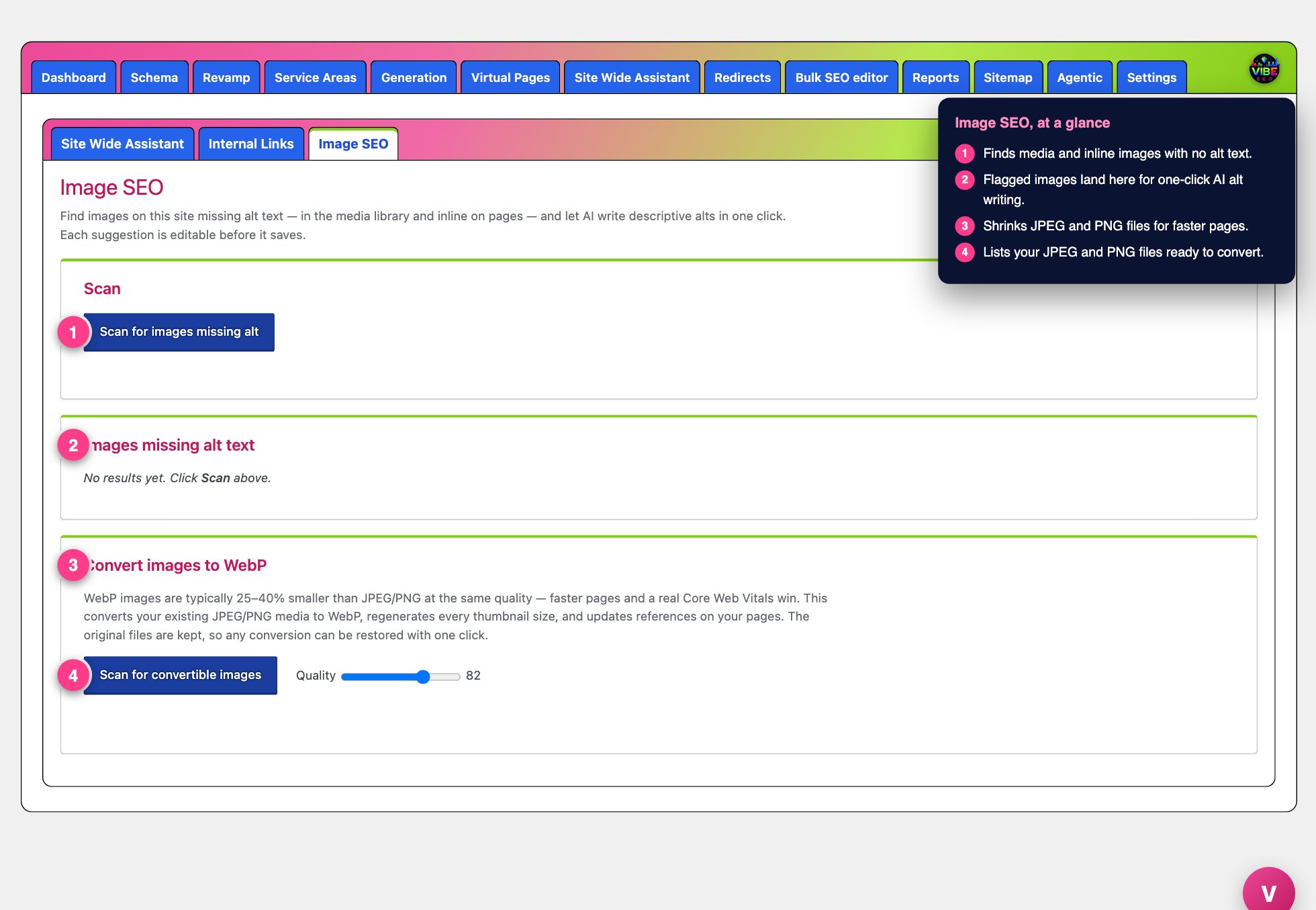 The image seo screen, with the numbered steps from this lesson marked.
Alt text is the short written description a screen reader announces and a search engine reads when it cannot "see" the picture. Missing alt text is one of the most common and most invisible problems on a WordPress site, because nothing on the page looks broken. Search engines just get less to work with, and Google Images has nothing to rank you on. Oversized JPEG and PNG files are the other silent drag: they slow the page down, which hurts both visitor experience and Core Web Vitals.
Where to find it
Image SEO lives inside the Vibe SEO plugin under the Site Wide Assistant tools. Open it and you will see three cards stacked down the page: a Scan card, a list of images missing alt text, and a WebP conversion card.
Fixing missing alt text
Scan
Click "Scan for images missing alt." The tool checks two places at once:
- Your media library. It looks at the most recent images (JPEG, PNG, WebP, and GIF) that have no alt text saved.
- Inline images on your published pages and posts. It reads the actual page content and flags any
<img>tag whose alt attribute is empty or missing.
When it finishes, every problem image appears in a table with a thumbnail preview, its filename, and where it came from. Library images are labeled "Media library." Images found inside a page say "In post:" followed by the page title, plus an "Edit page" link. The scan result is saved, so the next time you open the tool it shows your last scan and the count.
Generate and save
On any row, click "Generate alt with AI." The tool sends that image to your OpenAI vision model and gets back a short, descriptive alt line, usually five to twelve words, with no filler like "Image of." The suggestion drops into the editable text box. Read it, adjust the wording if you want, then click "Save." Nothing is written until you click Save, so there are no silent rewrites.
Saving handles the two cases correctly for you. For a library image it writes the alt into the attachment's alt field. For an image sitting inside a page, it edits the actual <img> tag in that page's content, so the alt shows up live on the site. Once saved, the row disappears from the list.
A few things to know. AI generation needs an OpenAI API key set on your Settings screen; without one the Generate button reports that no key is configured. The image is sent to OpenAI by its URL, so your media has to be publicly reachable on the internet, not behind a staging password. Cost is small, roughly one to two tenths of a cent per image on the default gpt-4o-mini model.
Converting images to WebP
The bottom card, "Convert images to WebP," shrinks your existing images. WebP files are typically 25 to 40 percent smaller than the same JPEG or PNG at the same visual quality.
Click "Scan for convertible images" to list your JPEG and PNG files with their current sizes and a total. There is a Quality slider (50 to 95, default 82) that trades a little file size against a little sharpness. Then convert everything with "Convert all," or tick the checkboxes and use "Convert selected." Conversions run in small batches so a big library does not overload your server.
For each image the tool creates a lossy WebP, regenerates every thumbnail size in WebP, and updates the links to that image across your pages so visitors are served the new file. Your original file is never deleted. If a converted WebP would actually be larger than the original, the tool skips it automatically, because a bigger file helps nobody. Each row shows the before and after size and the percent saved, plus a "restore" link that puts that image back to the original in one click.
Note that WebP conversion depends on your server. If it cannot generate WebP, the card shows a warning and you would ask your host to enable it.
The efficient workflow
- Set your OpenAI API key and model on the Settings screen first, or the Generate button will have nothing to call.
- Run the alt-text scan, then work top to bottom. Generate, glance at each suggestion, tweak anything that is vague, and Save. The AI is a fast first draft, not a rubber stamp, so a quick read pays off.
- Rescan after a big content push or a batch of new uploads to catch fresh gaps.
- Run the WebP scan and convert in bulk. Leave Quality at 82 unless you have a specific reason to go lower. Use restore on anything that looks soft.
Alt text pairs naturally with the rest of Vibe SEO: it strengthens the on-page signals your other tools build, feeds Google Images, and makes your site more accessible, while the WebP pass gives you a real speed win at the same time.