Virtual Location Pages
Rank in every place you serve, indexed fast.
What Virtual Pages is for
Local businesses win search by showing up for "roof repair in [place]" across every city, town, and neighborhood they serve. The old way to do that is to build a separate page for each place, which quickly means hundreds or thousands of real WordPress pages. That bloats the database, slows the site, and turns every wording tweak into a hundred edits.
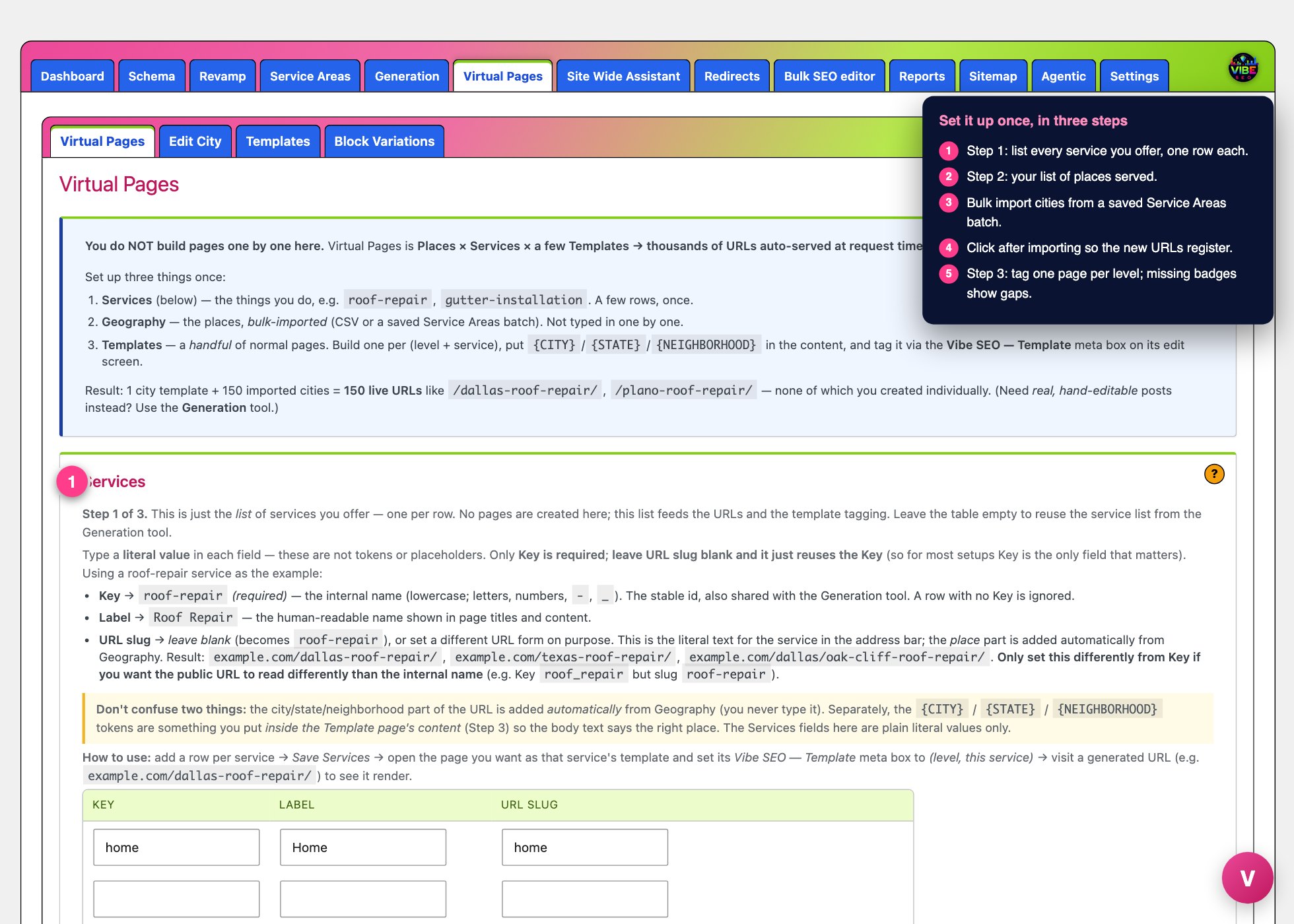 The virtual pages screen, with the numbered steps from this lesson marked.
Virtual Pages solves this a different way. You build a few normal template pages, list your services, and import your places. Virtual Pages then serves a live URL for every place-and-service combination on the fly, at the moment a visitor or Google requests it. No real posts are created. A single city template plus 150 imported cities gives you 150 live URLs like /dallas-roof-repair/ and /plano-roof-repair/, none of which you built one by one.
What it actually does
Virtual Pages works across three geographic levels and produces these URL shapes:
- State:
/texas-roof-repair/ - City:
/dallas-roof-repair/ - Neighborhood:
/dallas/oak-cliff-roof-repair/
When one of those URLs is requested, the plugin looks up the matching template page, fills in the placeholders for that specific place, and renders it. The place name is added automatically from your Geography list, so you never type the city part of the URL yourself.
Inside your template content you use tokens that get swapped per request: {STATE}, {CITY}, {NEIGHBORHOOD}, and {NEARBY_NEIGHBORHOOD_1} through {NEARBY_NEIGHBORHOOD_3}. The nearby tokens turn into links to the three closest neighborhoods, which builds internal linking automatically. Those nearby links are calculated from the latitude and longitude you provide, so coordinates matter at the neighborhood level.
Virtual Pages also sets the SEO essentials for each generated page: the page title (place plus service), a meta description that includes your business name and phone number, and a canonical URL pointing at the clean virtual address. If you run Yoast, it fills your Yoast title, meta description, and canonical too. If a real WordPress page ever exists at the same path, that real page wins, so you can always override a single location by hand.
How to use it, step by step
Virtual Pages lives under the Vibe SEO menu in your WordPress admin. The screen walks through three setup steps, and you do this setup once.
Step 1: Services
In the Services table, add one row per service you offer. Only the Key is required (for example roof-repair, lowercase with letters, numbers, hyphens, or underscores). Label is the human-readable name shown in titles. Leave URL slug blank and it reuses the Key. Set the slug differently only if you want the public URL to read differently from the internal name. Click Save Services. This list is shared with the Generation tool, so it does double duty.
Step 2: Geography
This is the list of places. Do not type them one at a time. Use bulk import instead:
- CSV upload with columns
state,city,name(orneighborhood),lat,lon. State and neighborhood are optional, so a city-only row is fine. - A saved Service Area batch. The Service Areas tool pulls real cities and neighborhoods from OpenStreetMap with GPS coordinates already attached. Save a batch there targeting Virtual Pages, then pick it from the dropdown here to import every row in one click. Duplicates are skipped automatically.
After importing, click Recompute Nearby Neighbors so the nearby tokens resolve, and Flush Rewrite Rules so the new URLs register.
Step 3: Templates
Build a normal page for each level and service you want to serve, for example one City template for roof repair. Put your {CITY}, {STATE}, and {NEIGHBORHOOD} tokens in the content. Then on that page's edit screen, find the box titled "Vibe SEO, Virtual Pages Template," set the Level and the Service, and save. You can use the "Convert this page to a Virtual Pages template" button to tag it without a full page update, or "Clone this page as a Virtual Pages template" to duplicate an existing design as a starting point. The Templates table on the tool screen shows a grid of every service by level, with a link to each tagged template or a "missing" badge where one is not set yet.
To confirm everything works, use the Preview URLs table at the bottom of the Geography section and open a generated address. The placeholders should fill with the real place.
The smartest workflow
Pair Virtual Pages with two other Vibe tools. Use Service Areas first to build your place list from OpenStreetMap so you get accurate coordinates without hunting them down, then push that batch straight into Virtual Pages. Build the smallest set of templates that covers your levels, because one template backs unlimited places, so your effort goes into making those few pages genuinely good rather than into volume. Because every place starts from that same template, turn on Block Variations so each generated page rotates its wording and reads as unique rather than a thin duplicate.
Reach for Generation instead only when you need real, individually hand-editable posts for specific locations. For broad programmatic coverage that adds no database weight and stays easy to update everywhere at once, Virtual Pages is the efficient choice. If a virtual URL ever returns a 404 after you change services, templates, or geography, click Flush Rewrite Rules and it will register again.